Set Up a UGC Channel
UGC Channels are available on the enterprise plan.
A UGC (User-Generated Content) Channel allows members of your organisation to upload video submissions directly through a branded portal. You moderate what gets published — contributors submit, you review, and only approved videos appear in the channel.
Common use cases include employee video initiatives, customer testimonials, training contributions, and company-wide communications campaigns.
How It Works
- You create a UGC Channel and share the link with contributors
- Contributors sign in and upload a video with a title and description
- Each submission lands in your Viostream library awaiting review
- You approve or reject submissions from the Submissions tab
- Approved videos are published to the channel
Setting Up Your Channel
1. Create the Channel
Follow the Channels Overview to create a new Channel. When prompted to choose a channel type, select UGC.
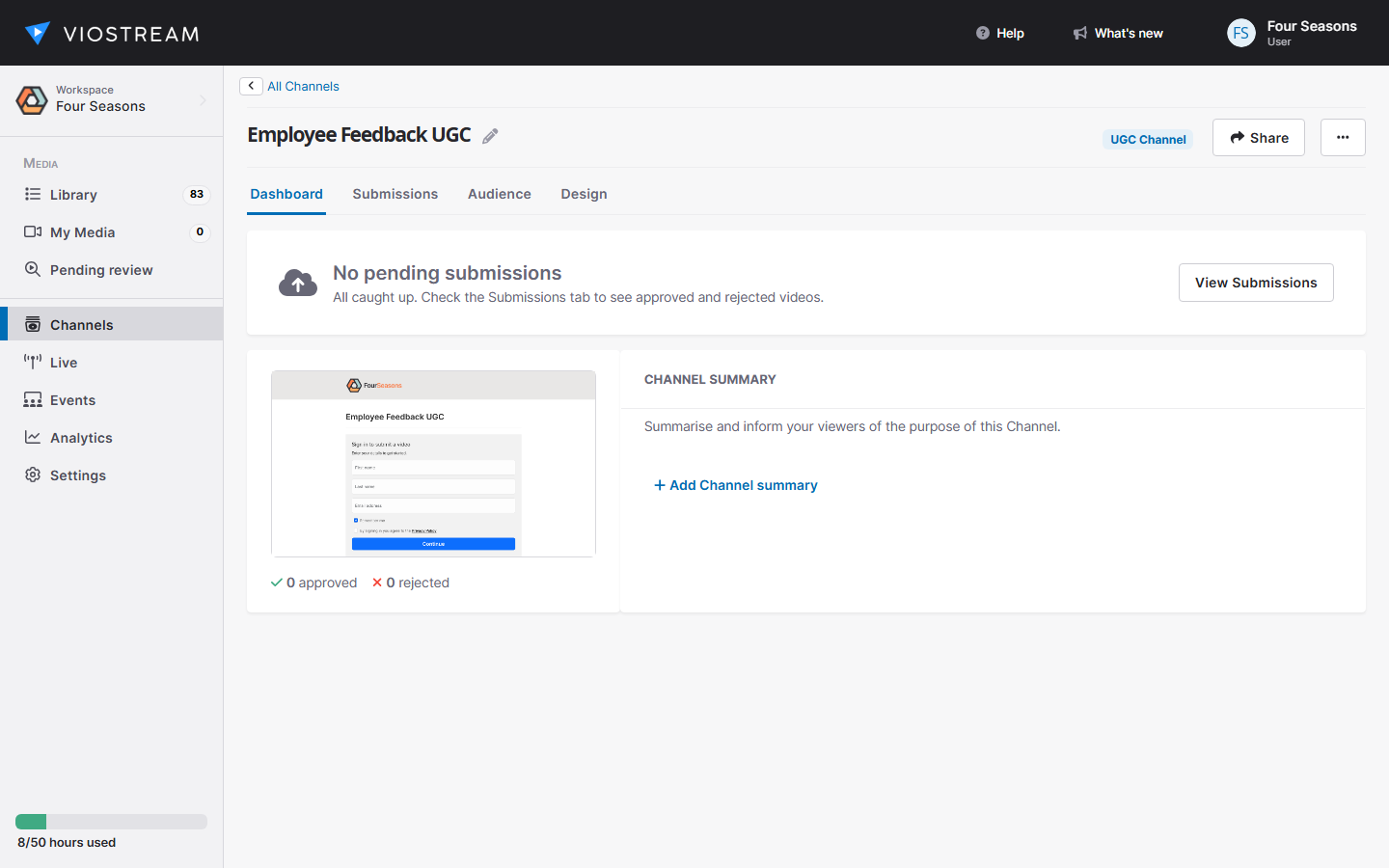
2. Configure Audience Access
Click on the Audience tab. UGC Channels require viewers to sign in before they can upload — this is enforced automatically.
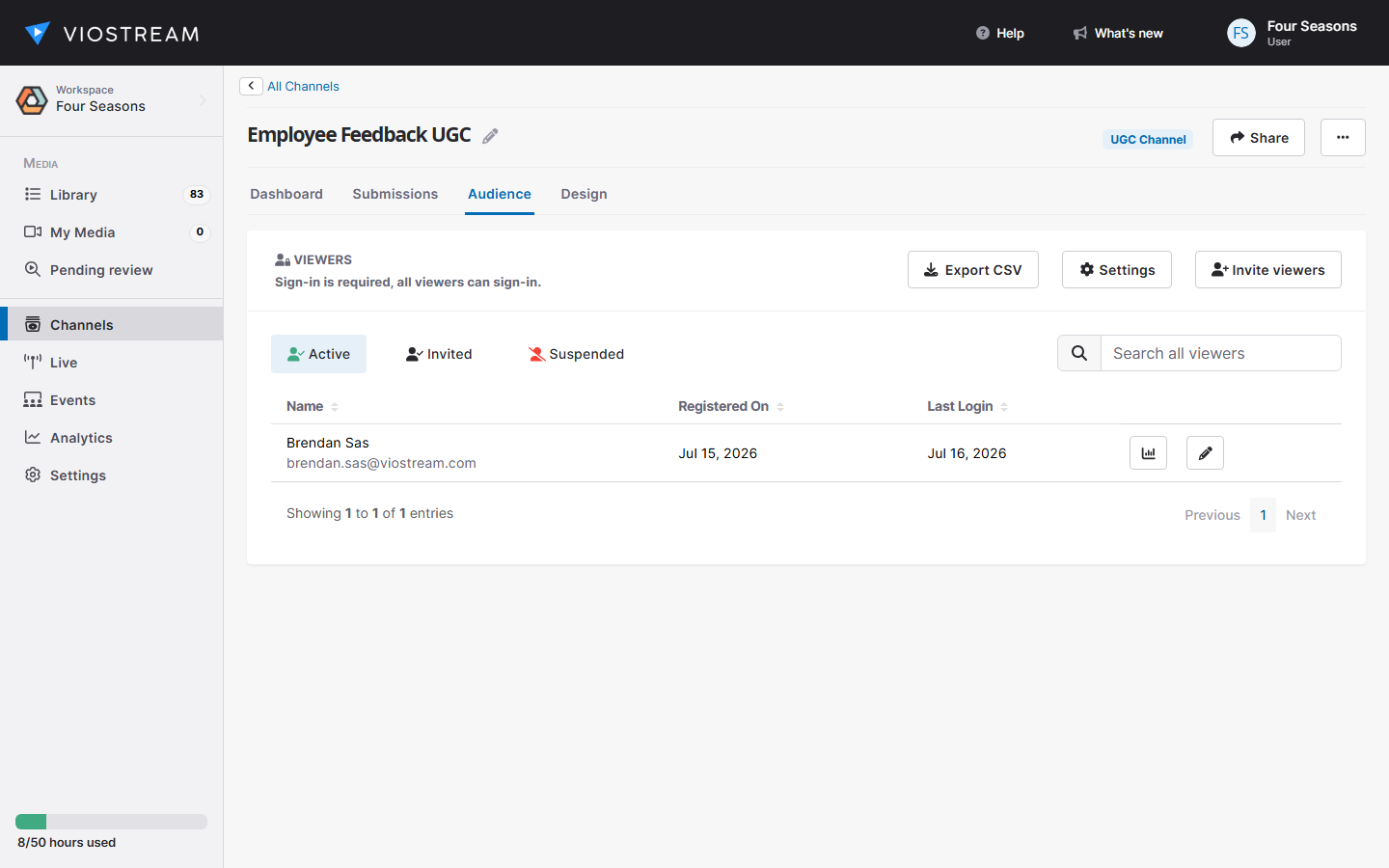
You can invite specific contributors using the Invite new Users button, or leave the channel open to anyone who registers. For full details on invitation options and CSV upload, see Audience Controls.
3. Customise your Channel
Click on the Design tab to customise the appearance of your UGC Channel — logo, colours, and fonts — to match your organisation's branding.
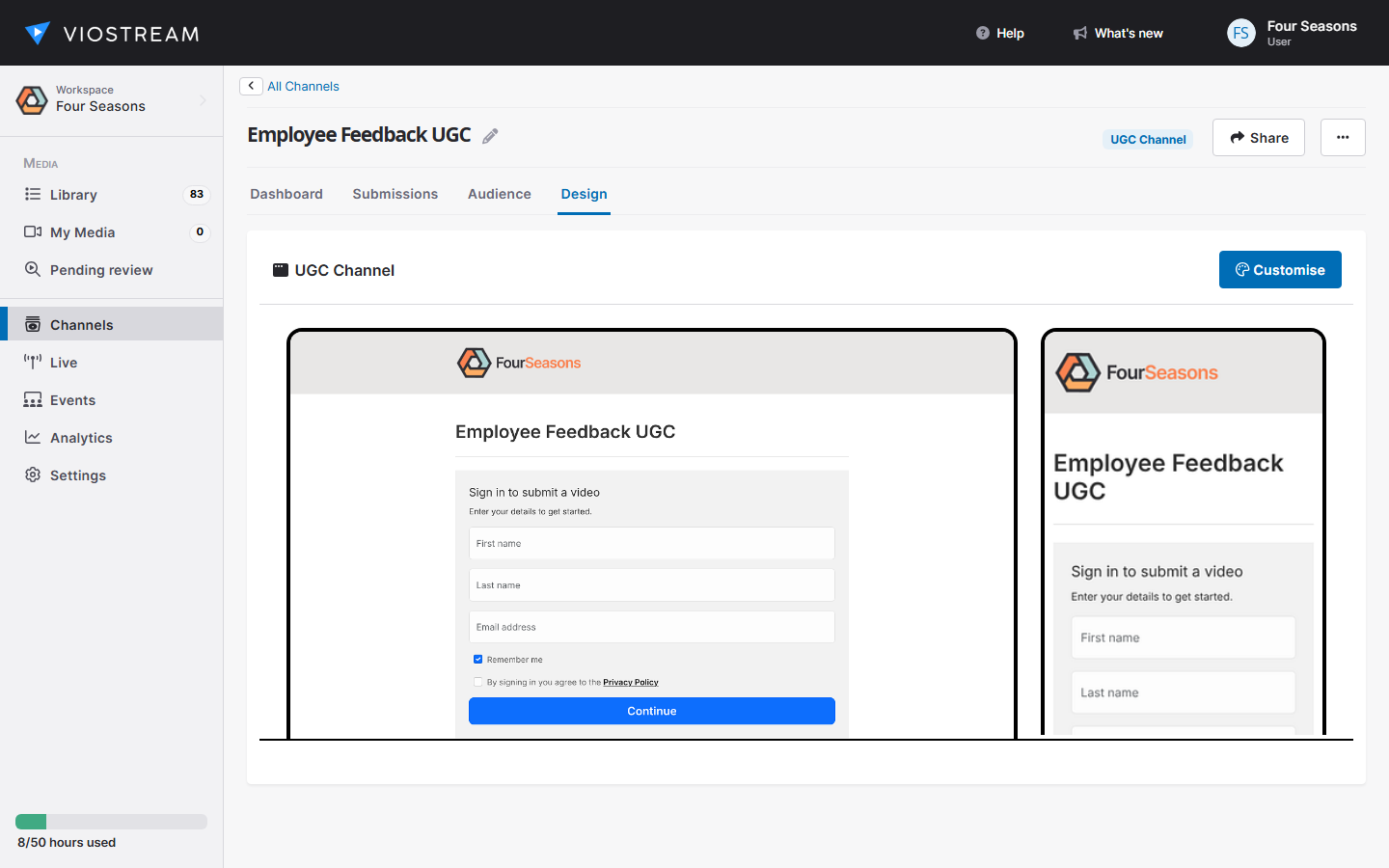
For full customisation options, see Customising Channels.
4. Share the Channel
Share the channel link with your contributors. They will be prompted to sign in before they can upload. For sharing options, see Sharing your Channel.
The Contributor Experience
Once a contributor signs in to the channel, they will see an upload form. They enter a title, description, and select a video file from their device. The upload uses a simple guided form designed to work on both desktop and mobile.
After submitting, the contributor can track the status of their upload in My Uploads, where each submission is shown as:
- Pending — the video has been uploaded and is awaiting review
- Approved — the video has been reviewed and published to the channel
- Rejected — the video was not approved (an optional rejection reason may be shown)
Moderating Submissions
Incoming submissions appear in the Submissions tab of your channel dashboard.
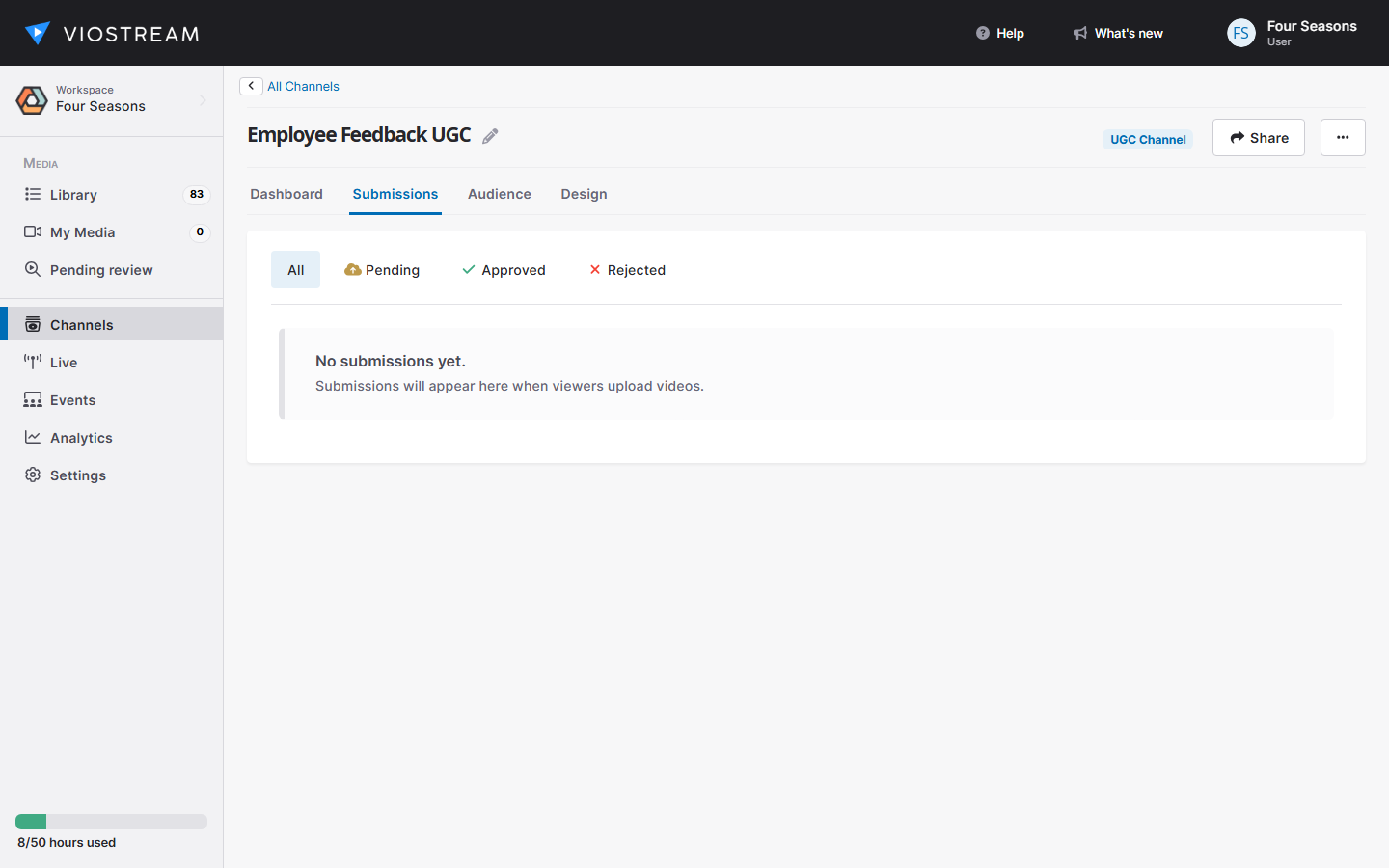
For each submission you can:
- Approve — the video is published to the channel and the contributor can watch it in their My Uploads view
- Reject — the video is not published; you can optionally provide a rejection reason that the contributor will see
Rejected videos remain in your Viostream library and can be approved at any time if you change your mind.
Ongoing Management
Managing Contributors
From the Audience tab you can view and manage all contributors who have signed in to your channel. As with other channel types, contributors can be suspended or unsuspended at any time.
Reviewing Channel Performance
Navigate to the Reports tab to see submission statistics and channel performance over time.